Backup Internet in Hua Hin: Run This Test Before Your Next Call
A practical recovery drill for remote workers: test mobile tethering from the laptop, time the switch and leave yourself instructions for the next interruption.

Editorial Team
Nov 21, 2026 · 6 min read
Status
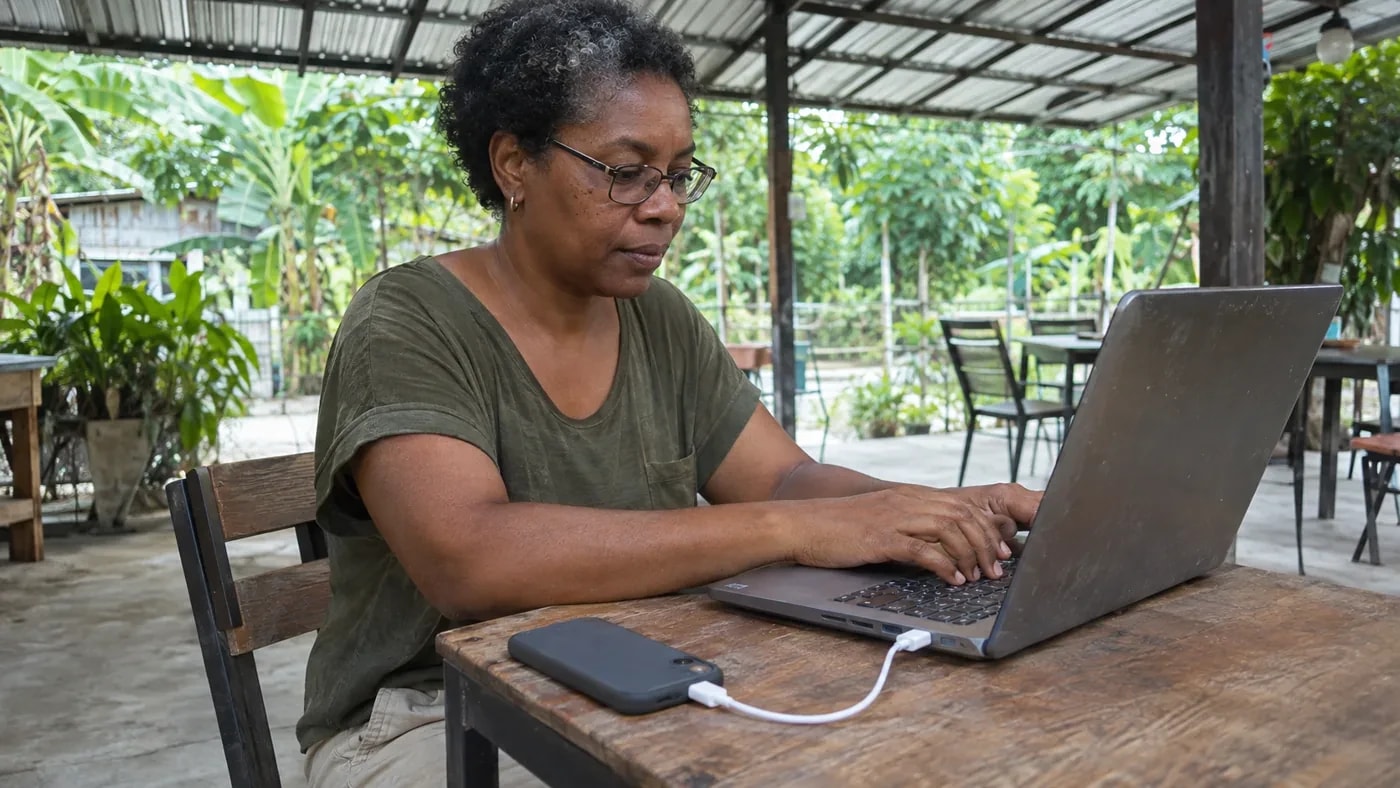
Test your backup internet on the laptop, in the room and at the time you expect to work. Join a practice call, move the computer from the main connection to mobile data, and measure how long it takes to hear each other and share a file again. A SIM in your phone is only part of that plan.
The awkward moment is usually practical: the hotspot password is missing, a data allowance has run out, or the laptop keeps reconnecting to the network you are trying to leave. A rehearsal gives you a short set of instructions you can use when a client is waiting.
This is a suggested test you can run yourself. It contains no claimed speed measurements or network rankings for Hua Hin.
Choose what you need to keep working
Write down the essential task. A voice call, a screen-sharing session and a large file delivery are different jobs. Decide which you must finish immediately and which can wait.
Keep the relevant non-sensitive test file ready. Ask a colleague or friend to help with a practice call so somebody can report what reaches the other end. Use the same work application you normally use, including your required VPN or sign-in process.
If you are still choosing a fixed connection, begin with our Hua Hin home-internet guide. The exercise below checks recovery once you have a main service and a proposed backup.
First check that the backup can actually be used
Confirm the mobile plan's remaining data, validity, tethering terms and what happens after any high-speed allowance is used. Google's Android guidance notes that carriers may limit or charge extra for tethering. Package names alone do not settle those details.
Connect your laptop to the phone and open an ordinary page. Confirm that the phone's upstream connection is mobile data: some Android phones can share an existing Wi-Fi connection. You want to test the route that will remain when the main connection is unavailable.
For iPhones, Apple documents Personal Hotspot over Wi-Fi and USB. Its Windows USB instructions include having Apple Devices or iTunes installed. Set up the method you intend to use while you still have working internet. Android users should follow their device instructions; Google's current guide says Mac computers cannot tether to Android by USB. Check your exact phone and computer combination before depending on a cable.
Our mobile-data guide covers choosing and registering a plan. Keep a copy of your package terms with your own test notes.
Run a short recovery drill
- Start on the main connection. Spend about five minutes on a practice call with your usual camera and screen-sharing setup. Ask the other person about broken audio, frozen video and whether the shared document is readable.
- Move the laptop to the backup. Disconnect it from the main network and connect through the phone. Keep the laptop's wireless adapter on if you are using a Wi-Fi hotspot. Leave shared routers and other people's connections alone.
- Time the recovery. Note how long it takes until both people can hear each other again. Check whether the meeting recovers itself or needs you to rejoin. Try opening and sending the harmless test file.
- Continue on the backup. Run the intended task for another five minutes. Check the phone's data use and power level before and after, using the tools available on your device or account.
- Repeat during your real working hours. Make another short check when you would normally speak to your client. Record a separate result instead of overwriting the first one.
Five minutes is a convenient rehearsal interval, not a guarantee of all-day reliability. Extend the test for the kind of work you do. If your next session is a live workshop, rehearse its actual activities rather than testing only a quiet audio call.
Keep a result sheet you can use
| Record this | Main connection | Backup connection |
|---|---|---|
| Date, time and exact working spot | — | — |
| Network and connection method | — | — |
| Clear two-way audio during the test? | — | — |
| Camera and screen share usable? | — | — |
| Time to recover or rejoin after switching | — | — |
| Test-file transfer completed? | — | — |
| Data and power available for the real session | — | — |
Choose a recovery time your work can tolerate. Tell the client what your fallback is if you cannot reconnect within it. Your acceptable delay is a working agreement, not a universal technical standard.
If the call is poor, record what happened before buying a faster package. Zoom's statistics guide explains diagnostics including delay, variation in packet arrival and lost data. Its network-indicator guide also distinguishes video indicators from an audio-instability warning. These can help describe a problem; a single speed-test result cannot demonstrate how your full meeting will behave.
Plan for a different kind of failure
A second connection is useful only for the failures it can cover. Write down what you expect it to solve: a home-router problem, a fixed-line interruption, weak Wi-Fi at the desk or a power cut. Ask the providers which networks the services use instead of assuming two brand names guarantee separate infrastructure.
Keep the phone and laptop charged, and test any power equipment you already own within its instructions. A router battery cannot promise that the network beyond your home will keep operating.
Prepare the small set of files you need offline using our remote-work setup guide. This also helps when your backup supports a call but a large cloud download would consume too much of its allowance.
Have a second place, with confirmed access
If a longer interruption would stop your work, identify somewhere you can realistically reach. Check access hours, quiet-call arrangements and whether you need to book. For overseas clients, read our late-night coworking guide before counting on a venue after its normal daytime hours.
Use actual quotes in the coworking cost calculator to compare occasional backup visits with a regular plan. Keep the address and contact details available offline.
A useful final note for your own desk is short: “Switch to [connection]. Rejoin [app]. If unresolved after [agreed time], message [contact] and use [confirmed alternative].” Fill it from your rehearsal so you are following a plan you have already tried.
Questions remote workers ask
Is a working hotspot on my phone enough?
Check it from the laptop with the actual work application. Authentication, plan restrictions, data remaining and recovery after switching all belong in the rehearsal.
Does a good speed test guarantee a clear video call?
No. Test the call itself and ask the other participant what they receive. Keep app diagnostics and the time and place with your result.
Should I buy another SIM before testing the one I have?
Start by identifying the failure you need to cover and testing the available setup. If it cannot complete the task, compare a different network or a confirmed alternative workplace using the same exercise.
Continue reading
Sources & Verification
- Personal Hotspot shares cellular data; Apple documents Wi-Fi and USB connections and Windows prerequisites for iPhone USB tethering. — Apple Support: Connect to Personal HotspotSource
- Some Android phones can share an existing Wi-Fi connection; carrier tethering limits may apply. Google's current guide warns that Macs cannot tether to Android by USB. — Google Android Help: Share a mobile connection by hotspot or tetheringSource
- Zoom documents meeting diagnostics including latency, jitter and packet loss. — Zoom Support: Accessing meeting and phone statisticsSource
- Zoom distinguishes video network indicators from an unstable-audio warning. — Zoom Support: Network stability indicators and messagesSource